CGCC Documentation
CGCC is an open-source software and game distribution ecosystem featuring an open community forum platform. This documentation serves to solve common issues and question while also providing information about website development workflows & configuration.
Account
Profile Tags
What is this for? Your Profile Tag acts as your unique identity token utilized for relational connections across website and it's services, from forum posting to MarkOut collection
Settings & Invites
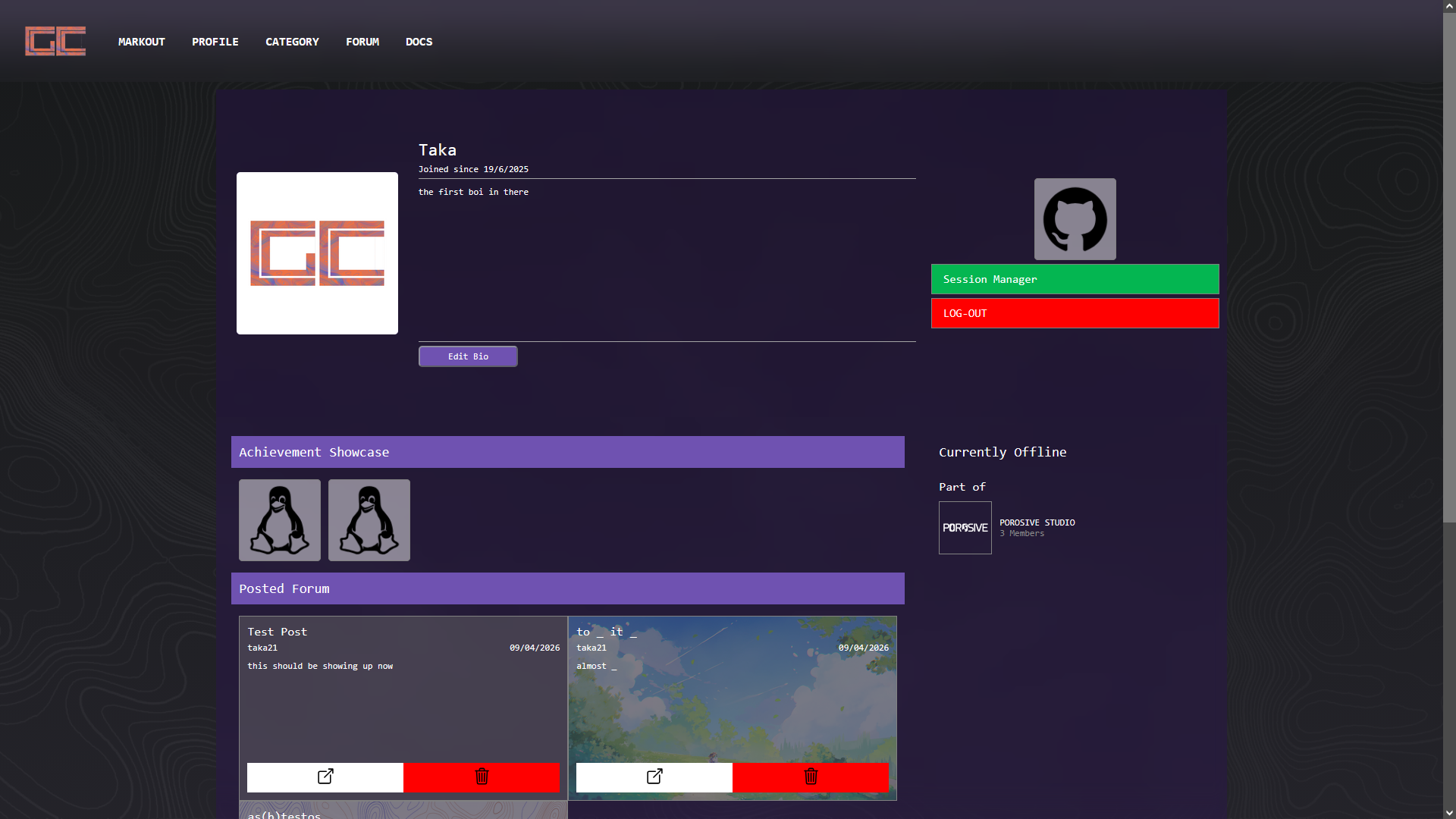
Before opening panel make sure that you've already logged in, go to profile page by clicking "profile" button from the top navigation bar and the page display like this
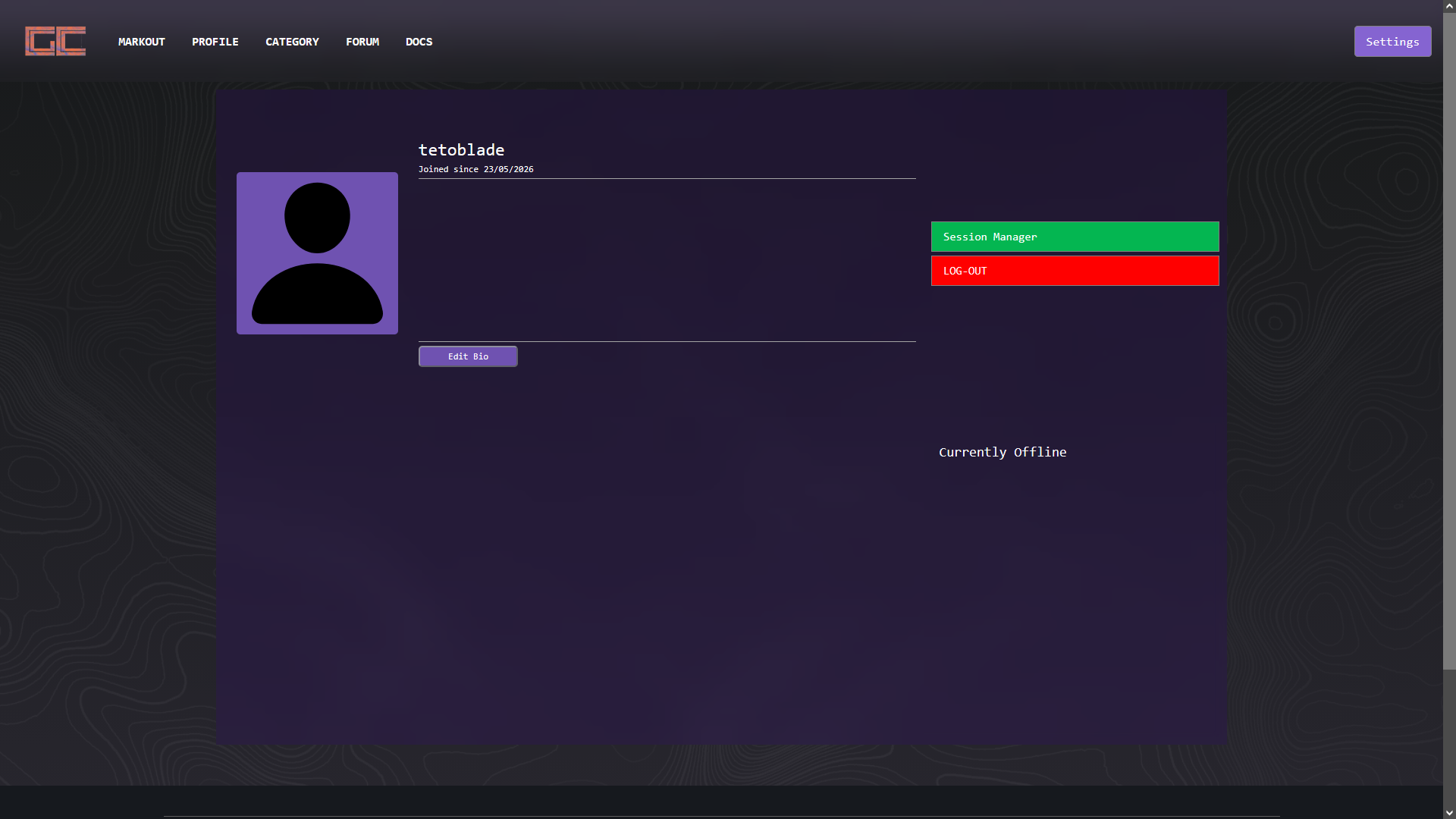
Clicking the settings button will open the settings page where you can personalize your profile page or configure your account privacy:
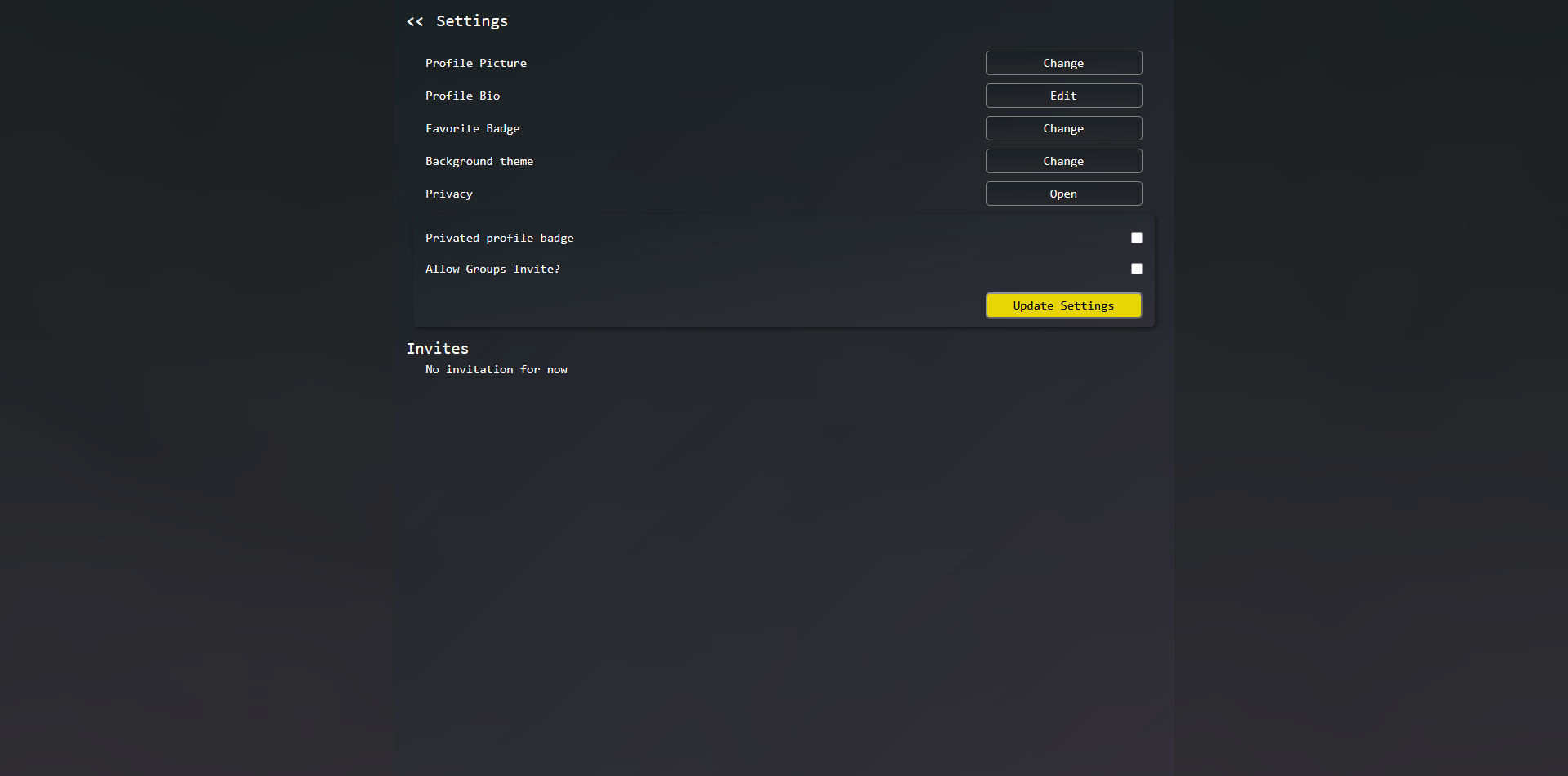
The upper module manages your settings preferences. Save changes directly by triggering the "Update Settings" buttons. The lower terminal display list of group invitation with actions button to accept or decline the invites.
Important note: It is highly advised to change the password as prompted after successfully joining a group because if not your account will not be accessible unless manually changed by the groups founder.
Sessions
If "keep me signed in" checkbox ticked on logins, auth instances will leverage persistent local storage to save session for skipping repetitive authentication upon browser restarts.
Troubleshooting
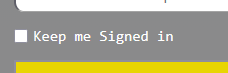
Error: Exceeded Sessions Uncheck the "Keep me signed in" checkbox before clicking login button.
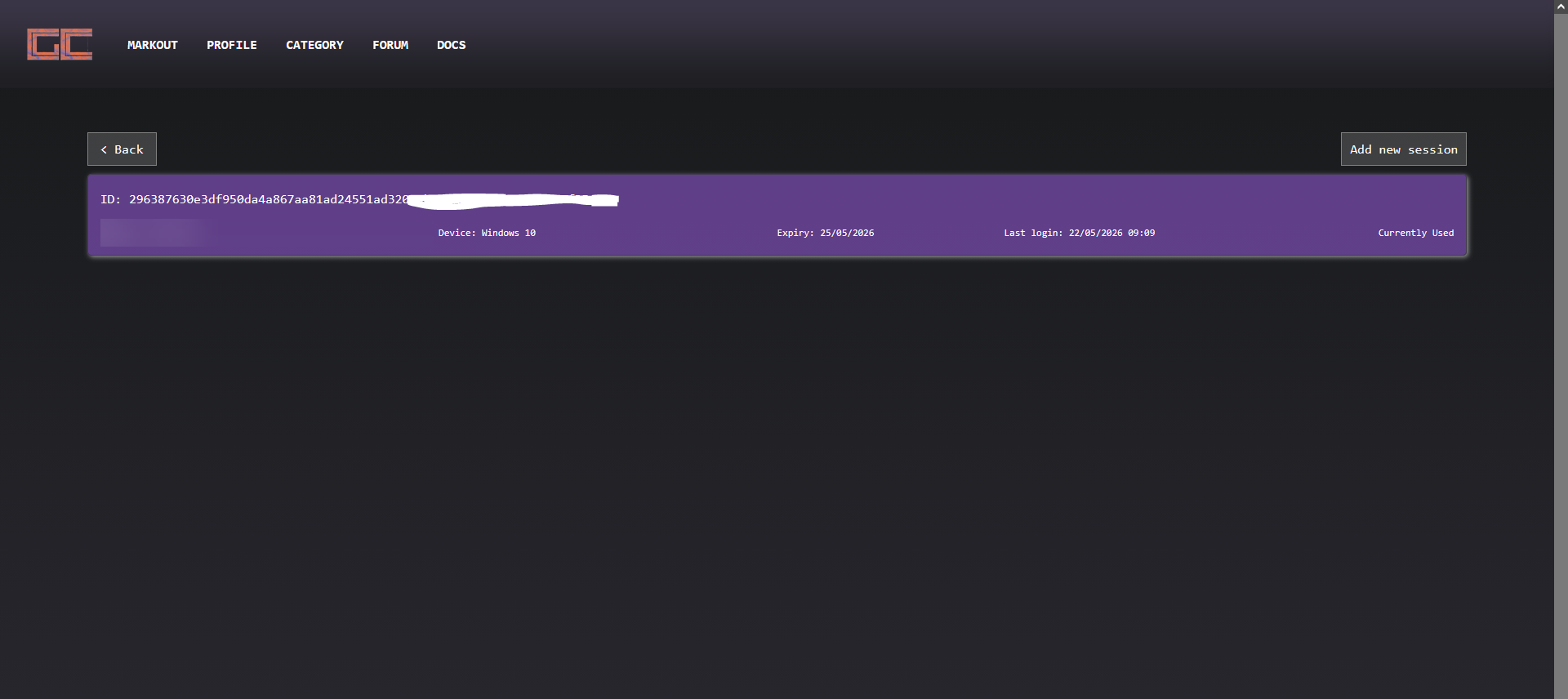
creating new session instance? Navigate inside your account dashboard and go to session manager page via clicking the session manager button.
Click on "add new session" button to create new session instances. If the message renders "Maximum session allowed", existing session must be removed before new instance can be created.
Collection Management & Forums
MarkOut
Use Case Context any software/games listed that wanted to get downloaded must first get added to user MarkedOut library before it will showing up on the client installer.
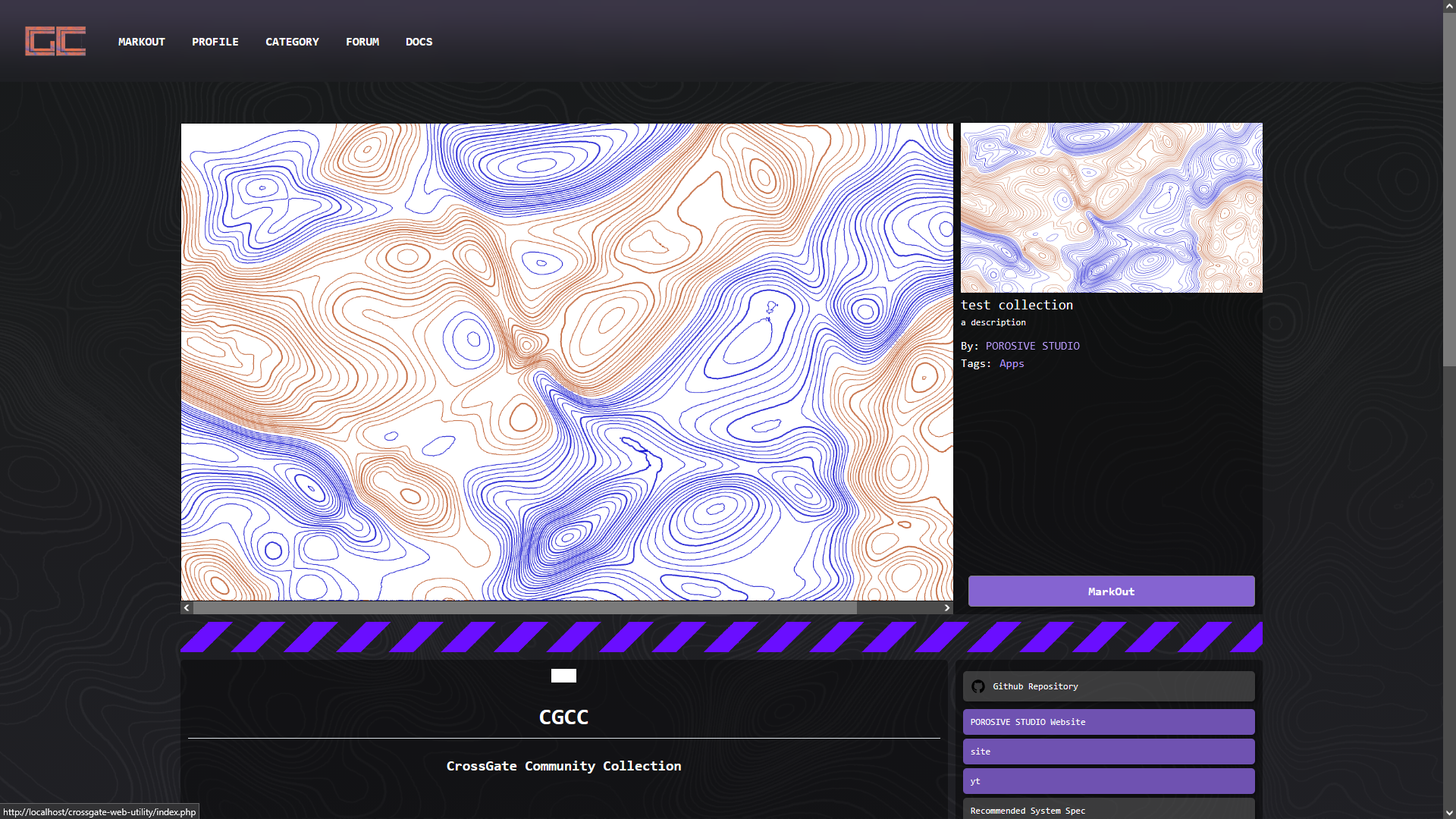
How to add a collection into my MarkOut? open view page of the said collection and it will show view page like this, Click the "MarkOut" button and you'll be directed to MarkOut page after the collection get added
Details That might be missed
Collection Status is a development status from collection publisher about the stage that the collection currently is in
Download Disabled Means that the collection publisher is disabling the download option either via api or client, this might be done for when the collection executables contain critical bug and fixes is not yet available
Forum Posting

Access forum hub dashboard and click on "Post New Forum" button.
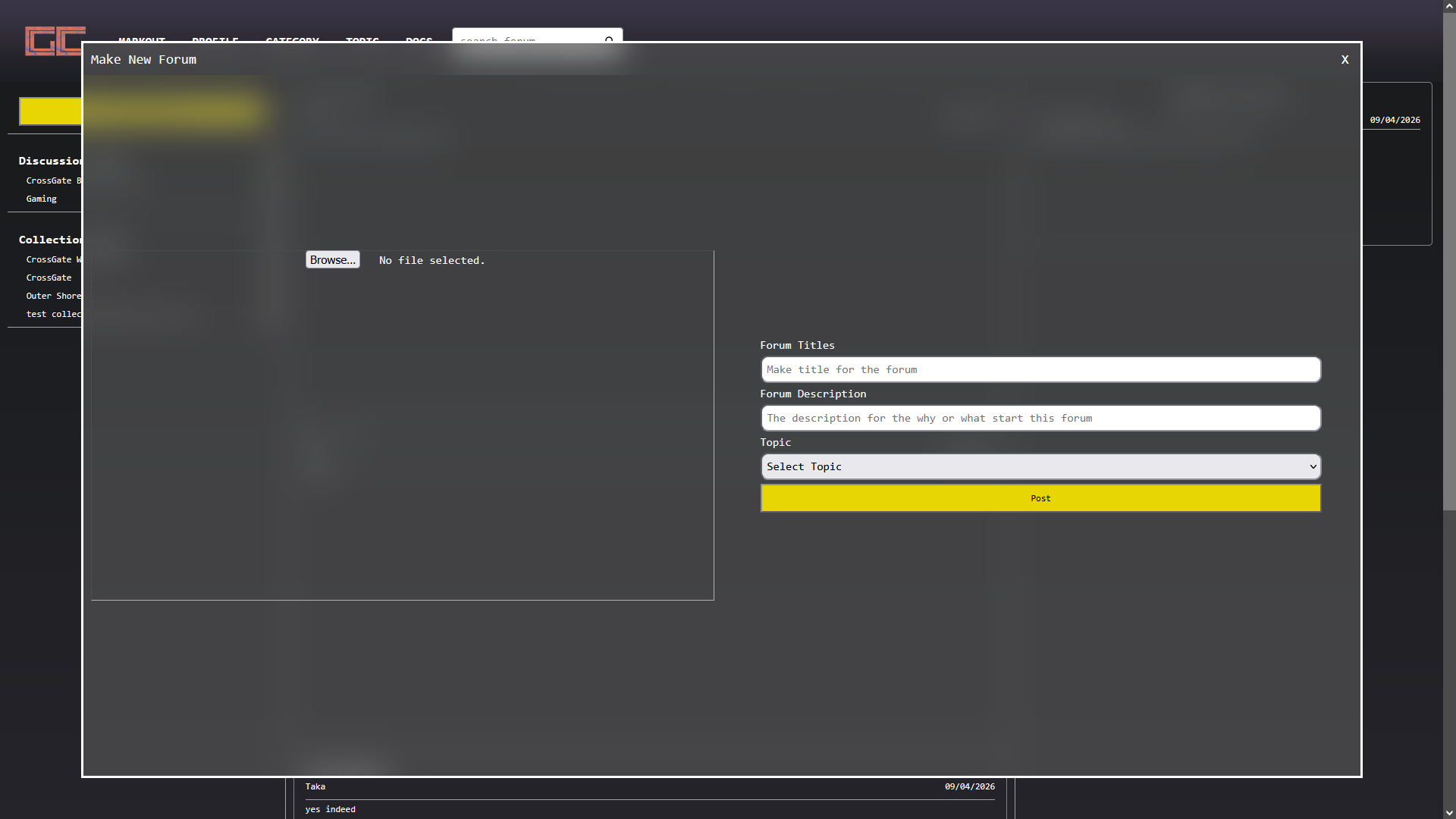
Fill in the title, description, and bind to the desired topics. Images are optional and aren't needed for posting new forum
Client Launcher
Note about the launcher
By default client require user to be logged once a month to provide the newest update, the launcher cannot function without connected to the CGCC Web API.
FAQ
Collection does not show up in the launcher: check your MarkedOut collection on the website and if it did not get listed in your MarkOut page that means the collection haven't been added and it will not get listed in the launcher either , be sure that what you logged the same account as the one you're currently logged in the website.